
Install Eleventy SyntaxHighlighter Plugin
Install the plugin code:
npm install @11ty/eleventy-plugin-syntaxhighlightAdd the plugin to Eleventy config file (eleventy.config.js):
const syntaxHighlight = require("@11ty/eleventy-plugin-syntaxhighlight");

module.exports = function (eleventyConfig) {
  // Syntax highlighting plugin
	eleventyConfig.addPlugin(syntaxHighlight);
};
Define a wrapper using a Eleventy Shortcut
The@11ty/eleventy-plugin-syntaxhighlight plugin provides the syntaxHighlight.pairedShortcode(code, lang) function, which takes a block of code and a specified language. It then returns a syntax-highlighted version of the code. This function can be used within an Eleventy shortcode to easily apply syntax highlighting to code blocks in your templates.
For example, a custom shortcode {% codeblock "language", "title" %} can be defined in eleventy.config.js as follows:
const syntaxHighlight = require("@11ty/eleventy-plugin-syntaxhighlight");
module.exports = function (eleventyConfig) {
// add Syntax highlighting plugin
eleventyConfig.addPlugin(syntaxHighlight);
// add shortcut codeblock
eleventyConfig.addPairedShortcode("codeblock", function(code, lang, title = "") {
// generate code highlight
const highlightedCode = syntaxHighlight.pairedShortcode(code, lang);
// return code with header and copy button
return `<div class="code-block-wrapper">
<div class="code-header">
<div class="code-title">${title}</div>
<div>
<span class="copy-text">Copied!</span>
<button class="copy-btn" onclick="copyCode(this)">
⎘
</button>
</div>
</div>
${highlightedCode}
</div>`
});
};How it Works:
- The shortcode {% codeblock "language", "title" %} is used to wrap your code block.
- The content inside the shortcode tags is the code to highlight.
- The button and the copy functionality defined in
.eleventy.config.jswill be applied automatically when the page is rendered.
This way, each code block will have syntax highlighting as well as a "Title" and "Copy" button.
Add Javascript Code for the Copy functionality
In the site's JavaScript (e.g., inside a main.js file or at the bottom of the page), add a script to handle the copying functionality:
function copyCode(button) {

    const codeText = button.parentElement.parentElement.nextElementSibling.innerText

    // Copy the text to the clipboard
    navigator.clipboard.writeText(codeText).then(() => {

    // Change icon to "check" on success
    const icon = button.querySelector('i');
    icon.classList.remove('fa-copy');
    icon.classList.add('fa-check');

    // Show "Copied!" message
    const copyText = button.previousElementSibling
    copyText.classList.add('visible');

    // Remove "Copied!" message after 2 seconds and reset icon
    setTimeout(() => {
      copyText.classList.remove('visible');
      icon.classList.remove('fa-check');
      icon.classList.add('fa-copy');
    }, 2000);

  }).catch(err => {
    console.error('Failed to copy code: ', err);
  });
}
This JavaScript function will:
- Look for the code block below the "Copy" button.
- Copy the code to the clipboard using the navigator.clipboard.writeText() function.
- Optionally change the button text to "Copied!" after successfully copying, and revert it back after 2 seconds
Add CSS to style the header and copy button
The following CSS, styles the header and copy button:
.code-block-wrapper {
  position: relative;
  background-color: #272822;
  border-radius: 0.3em;
}

.code-title {
  color: white;
  padding: 5px 10px;
  font-family: monospace;
  font-size: 14px;
  font-weight: bold;
  margin-bottom: 0;
  padding-bottom: 0;
}

.copy-btn {
  top: 8px;
  right: 8px;
  background: transparent;
  border: none;
  cursor: pointer;
  font-size: 16px;
  color: white;
}
.code-header {
  margin-top: 0px;
  display: flex;
  justify-content: space-between;
  align-items: center;
  border-bottom: 1px solid #FF6B35;
}

.copy-btn .fa-copy, .copy-btn .fa-check {
  font-size: 16px;
}

.copy-btn:hover {
  color: #FF6B35; /* Sunset orange */
}

.copy-text {
  top: 8px;
  right: 50px;
  font-size: 14px;
  color: white;
  visibility: hidden; /* Hidden initially */
  opacity: 0;
  transition: visibility 0s, opacity 0.5s linear;
}

.copy-text.visible {
  visibility: visible;
  opacity: 1;
}
This CSS will:
- Add a title for the code block
- Position the copy button in the top-right corner of the code block.
- Style the button with a white background and white text
Add the PrismJ Theme CSS
Add the PrismJS theme CSS:
<head>
<link href="https://unpkg.com/prismjs@1.20.0/themes/prism-okaidia.css" rel="stylesheet">
</head>
Add Font Awesome via CDN
The copy button icon is downloaded from Font Awesome. Include the following code in the <head> element the HTML template:
<head>
  <link rel="stylesheet" href="https://cdnjs.cloudflare.com/ajax/libs/font-awesome/6.5.2/css/all.min.css">
</head>
Example Markdown
In the Markdown files (e.g., example.md), the custom codeblock shortcode is used like this:
---
title: "Code Block with Copy Button Example"
layout: "base.njk"
---

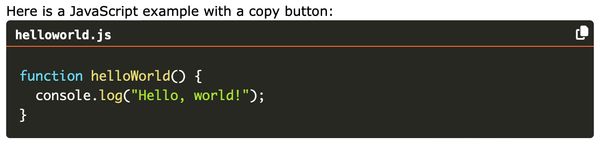
Here is a JavaScript example with a copy button:

{% codeblock "javascript", "helloworld.js" %}
function helloWorld() {
  console.log("Hello, world!");
}
{% endcodeblock %}
In this example, codeblock is the paired shortcode that you defined in your 11ty configuration.
"javascript" is the language for syntax highlighting, helloworld.js is used as the title.
The code inside the block will be highlighted according to the language and will have the "Title" and "Copy" button functionality applied.
Testing
Restart your 11ty server (npx @11ty/eleventy --serve) and check the page with code blocks. You should see a "Copy" button.
Click on the copy button, and the code will be copied to the clipboard.
Demo
An example report can be found at https://github.com/drffej/eleventy-syntaxhighlight-title and the live site at https://main--11ty-syntax-copy-title.netlify.app.